How to Make an LRC File — 3 Methods and the Format
An LRC file is a plain text file in which every lyric line starts with a timestamp. Save it with the same name as the audio file, put it in the same folder, and a compatible player highlights each line as the song reaches it.
There are three ways to create one: type the timestamps in a text editor, tap along to the song in a browser tool, or let software align the lyrics to the audio. Which one to use depends on what you have. With the lyrics in hand and line-level timing as the goal, a tap-sync tool takes one pass through the song. For word-by-word timing, or when there is no transcript, automatic alignment is the practical route: in our test its median word-onset error was 36 to 69 ms. Whichever method you use, the lyrics only show if the player can find the file, which the last two sections cover.
The LRC file format: what goes inside an LRC file
A minimal file looks like this:
[ti:Paper Boats]
[ar:Example Artist]

[00:12.00]Paper boats on a morning tide
[00:15.30]Carry what I could not say
[00:19.84]
[00:41.20][01:32.60]Let it go, let it go
The file has four kinds of line:
- Time tags. The standard form is
[mm:ss.xx]: minutes, seconds, and hundredths of a second. The tag marks when the line starts. LRC has no end time; a line stays on screen until the next one begins. - ID tags. Optional metadata at the top, written as
[type:value]. The common ones areti(title),ar(artist),al(album),by(who made the LRC file), andoffset. Players generally read them as metadata or ignore them, so they do not appear as lyric lines. - Repeated lines. A line that is sung more than once, such as a chorus, can carry several time tags, as in the last line above.
- Empty lines. A time tag with no text clears the display, which is useful during an instrumental break.
Parsers are more tolerant than the definition suggests. FFmpeg's LRC reader accepts any number of decimal places, so three-digit milliseconds usually work. Tools that write LRC still default to two digits, which is the safe choice.
LRC has no formal specification and no mandated encoding. UTF-8 is the practical choice for lyrics that are not in English, and Sony's Walkman guide requires it explicitly.
Where to get LRC files that already exist
For a released song, you can often download a finished LRC file instead of making one. LRCLIB is a free, crowd-sourced library of synced lyrics, and its desktop client LRCGET scans a music folder and saves a matching .lrc next to each track.
The match depends on the exact recording. LRCLIB's API documentation says that when a client looks a track up by title, artist, and duration, lyrics are returned only if the duration is within ±2 seconds of the stored record. Apple gives labels the same warning in its lyrics delivery guidelines: "Different versions of the same songs will have different time sync."
You have to make the file yourself for a song you wrote or generated, a cover, a live take, a remix, or an edit whose intro differs from the album version.
Three ways to make an LRC file
| Method | What you need | Effort | Word-level timing |
|---|---|---|---|
| Text editor | The lyrics and a player that shows hundredths of a second | Pause and type for every line | Possible, but slow |
| Tap-sync tool in the browser | The lyrics as text | One real-time pass through the song, plus corrections | Depends on the tool |
| Automatic alignment | The audio file; lyrics are optional | Upload, then review | Yes |
Method 1: Write the timestamps in a text editor
Paste the lyrics into any plain text editor with one lyric line per row. Play the song in a player that shows fractions of a second, pause at the start of each line, and type the time in front of it. Save the file with the .lrc extension and UTF-8 encoding.
This needs no extra tools and is the slowest of the three methods, because the song stops at every line.
Method 2: Tap along in a browser tool
Tap-sync tools play the song and write a timestamp each time you press a key. Akari's LRC Maker is open source and runs in the browser: drop the audio file on the page, select a line with the arrow keys, and press Space to stamp it. lrcgenerator.com works the same way with a "Next Line / Next Word" button, and has a word-by-word mode.
You still need the lyrics as text before you start, and the timing is only as good as your reactions. Line-level sync takes one pass through the song. Word-level sync by tapping means one keypress per word at full speed.
Method 3: Align the lyrics to the audio automatically
Automatic tools listen to the recording and compute the timestamps. The Lacuna LRC generator works in two modes:
- Paste your lyrics (convert text to LRC). If you already have the lyrics as plain text, this is how to convert them to LRC: the tool keeps your exact text and line breaks and only computes the timing. Use this whenever you have the lyrics.
- Leave the lyrics box empty. The tool transcribes the vocals first, then aligns the transcription.
In both modes it separates the vocals from the backing track before aligning, and gives every word its own start time. Uploads can be MP3, WAV, FLAC, M4A, or OGG, up to 10 MB and 10 minutes. Ten languages are supported: English, Chinese, Japanese, Korean, Spanish, Portuguese, French, German, Italian, and Russian.
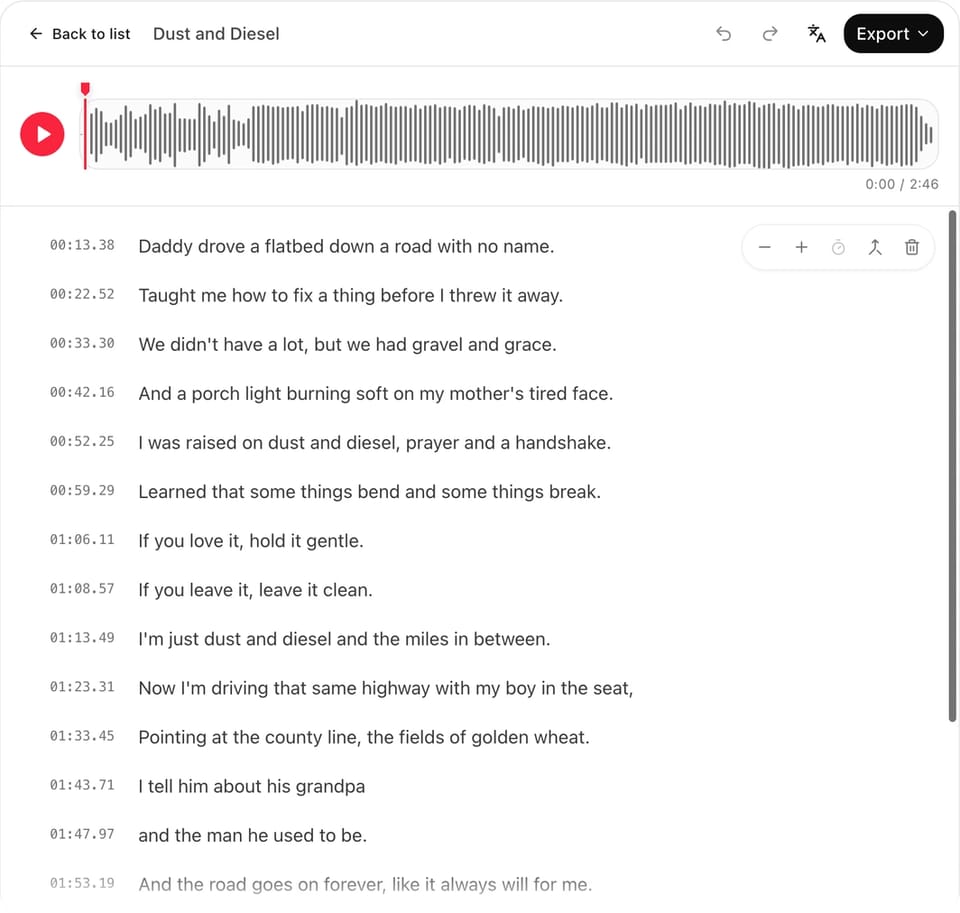
In the editor you can move a line 0.1 seconds earlier or later, snap it to the playhead, nudge a single word by 50 ms, split or merge lines, and correct a misheard word. Export options are LRC, word-by-word LRC, SRT, VTT, and plain text.
The tool requires a sign-in and currently costs 50 credits per song. Viewing, playback, and editing are available on every plan, and downloading or copying the finished file is part of the paid plans. The page lists the current details.
How accurate automatic alignment is
When we chose the alignment pipeline, we tested it on 10 songs in 8 languages and compared its timestamps with the reference timings that came with each song. Timing could be scored on nine of them; the reference for one fast English rap track covered only part of the song.
The four songs with word-level reference timings were in English, Portuguese, French, and German. The transcription figure counts words in the written lyrics that were missed or misheard, per word, or per character for Chinese, Japanese, and Korean. Four of the ten songs were transcribed with no such errors. Extra words are not counted: the recordings repeated choruses and added ad-libs that the written lyrics did not contain.
These numbers have limits. Every test song was AI-generated, the reference timings were themselves machine-made, and each language had one or two songs. We have not yet run the same test on commercially released, human-sung recordings.
The largest error came from a slow Japanese ballad with long held notes: a median line-onset error of 210 ms, measured per line rather than per word. Words stretched across several notes are where alignment drifts, and those are the lines to check in the editor. A 200 ms error is hard to notice in line-by-line display and easy to notice in word-by-word highlighting.
Standard LRC vs. enhanced LRC (word-by-word)
Enhanced LRC is standard LRC with an extra time tag in angle brackets before each word, which lets a player highlight the lyrics word by word:
[00:12.00]<00:12.00>Paper <00:12.41>boats <00:12.90>on <00:13.05>a <00:13.20>morning <00:13.78>tide <00:14.60>
The variant has no formal specification either, and published examples disagree on small details such as spacing. The line above is what Lacuna's exporter writes.
Player support is narrower than for standard LRC. Writing about synchronized lyrics embedded in MP3 tags, the kid3 handbook notes that "most players only support the granularity of a line or sentence," and the same holds for LRC files. Among the players we checked, Symfonium has a karaoke mode and Rockbox parses word tags, while word-by-word display in foobar2000's OpenLyrics is still an open feature request. If you are not sure what your player does with word tags, export the standard file as well.
The destination decides the format:
| You want | Export |
|---|---|
| Line-by-line lyrics in a music player or on a media server | Standard LRC |
| Word-by-word highlighting in a player that supports it | Enhanced (word-by-word) LRC |
| Captions in a video editor or on YouTube | SRT |
| Captions for a web video or audio player | VTT |
How to open an LRC file in a music player
An LRC file is plain text, so any text editor opens it for reading or editing. To see the lyrics scroll with the music, play the song in a player that supports LRC. In nearly every such player, the .lrc file must sit in the same folder as the audio and have the same name apart from the extension: Paper Boats.mp3 needs Paper Boats.lrc.
| Player | Reads a same-name .lrc file | Notes |
|---|---|---|
| Plex | Yes | Lyrics embedded in tags are not supported |
| Jellyfin | Yes | Also accepts .elrc and .txt |
| Navidrome | Yes | Also reads embedded lyrics |
| MusicBee, AIMP | Yes | MusicBee stores lyrics inside the audio file by default and uses a same-name .lrc when lyrics are set to an external file; AIMP needs a skin that shows lyrics |
| foobar2000 | With a component and a settings change | OpenLyrics looks in foobar2000's configuration folder for Artist - Title.lrc by default; set its local-files location to "Same directory as the track" and the filename format to the track's file name |
| Kodi | With an add-on | CU LRC Lyrics |
| Poweramp, Musicolet, Symfonium | Yes | All three also read embedded lyrics |
| Retro Music | Different rule | Expects song - artist.lrc in its own lyrics folder |
| Sony Walkman, FiiO, Rockbox | Yes | Sony requires UTF-8 and a file of at most 512 KB; Rockbox expects a UTF-8 file to be named .lrc8, or its Encoding setting to match |
| VLC 3.x | No | .lrc is not among the subtitle types it loads |
| Apple Music | No | The only documented route is typing or pasting text into Custom Lyrics |
| Spotify | No | Synced lyrics are supplied through Musixmatch |
The streaming services do not take LRC from listeners. Apple receives time-synced lyrics from distributors as TTML files, an XML-based timed-text format, and Spotify's are provided by Musixmatch, where verified artists can sync their own songs.
How to add an LRC file to an MP3 (embedded lyrics)
There are two ways to add an LRC file to an MP3. The simple one is the separate file described above: same folder, same name. The other is to embed the lyrics in the MP3's tags, which avoids the risk of a renamed file losing its lyrics, but support is fragmented.
MP3 files store metadata in ID3 tags, and ID3 defines two lyrics fields, called frames: USLT holds plain, unsynchronized text and SYLT holds text with timestamps. FLAC files conventionally carry LRC text in a LYRICS tag. Mp3tag writes its UNSYNCEDLYRICS field to USLT and does not support SYLT; its author has said this is deliberate.
Pasting LRC text into a lyrics tag therefore works only in players that parse tag text as LRC. Poweramp does this for any lyrics tag, Symfonium reads a LYRICS tag, and foobar2000 does it through a lyrics component such as OpenLyrics. Plex does not read embedded lyrics at all. For true SYLT frames, kid3 can import an LRC file directly. If the goal is compatibility across devices, a separate .lrc file next to the audio is the safer route.
Fixing lyrics that are missing, offset, or garbled
The lyrics do not appear. Check the filename character by character, including the extension: a text editor can save the file as song.lrc.txt without showing it. Then check the table above for whether the player needs a plugin or a different folder.
Every line is early or late by the same amount. The file was probably timed against a different version of the recording. The offset tag exists for this. In Wikipedia's definition and in the FFmpeg and OpenLyrics parsers, a positive value shows the lyrics sooner. Not every player is documented to follow that, so shifting the timestamps themselves in an editor is the more reliable fix.
Accented or non-Latin characters are garbled. Re-save the file as UTF-8. Rockbox is the exception noted in the table.
Angle-bracket tags show up as text. The player does not understand enhanced LRC. Use the standard export.
One section drifts while the rest is fine. This is typical after automatic alignment of long held notes or dense passages. Fix those lines by ear rather than re-running the whole song.
If you have the lyrics as text, paste them into the Lacuna LRC generator with the audio and check the result against the song before exporting. If the destination is a video rather than a player, the same timing carries into the lyric video maker.